
Desktop Basics
What is the Desktop?
The Windows desktop is the first screen that you see when you start up a computer. A desktop typically has items called “Icons” in addition to the Start button, Taskbar, Quick Launch Bar and Notification area. I’m currently running Windows Vista version.
Here is a screen shot of what part of my desktop looks like. Incase you are wondering about the desktop background, yes that is the majestic Grand Canyon where I did spend a week on the bottom! If you are interested in more background and wallpapers for desktop, please check out this site.
http://freewallpapers4desktop.com/

Let us take a look at different sections of Windows desktop one at a time:
Start Button
The Start button is located on the bottom left corner. In Windows Vista, it is a circle with Microsoft Windows logo in it. When you click on it, it will launch a flyout menu. From this menu you can launch program applications, work with files and folders, look for help and even change your computer settings.
On my computer this is what the Start button menu looks like.

You will notice that Start Menu is split into three areas, common applications (top section), regular menu options (middle section) and Shut Down (bottom section). In the middle section, when you click on Programs , you will get a list of all the available programs and application that are loaded on your computer.
In my case, here is a partial list of Programs and application items.

From the Program menu, you can drill down further into the applications. In my case, you can see that I have selected QuickTime from the list. As I continue, it gives me even more options to choose from.
Quick Launch toolbar
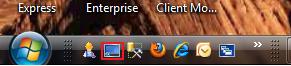
Right next to the Start button you will find the Quick launch toolbar. This feature is handy as it offers one click launch for commonly used Windows programs. What I have done in my case is added the programs that I’m frequently using in the Quick launch section. These include applications like Microsoft Outlook and Firefox browser plus a few more things.
In addition to having commonly used applications here, you can also use the Show Desktop icon (red rectangle below) to minimize all your active applications at once. Here is a screen shot of what my Quick launch toolbar contains.
Taskbar
Taskbar is long rectangle bar present at the bottom of your desktop area. Using the Taskbar, you can switch from one active application to another by simply clicking on the particular program. Another way to do this is to use the Windows keyword shortcut, Alt + Tab.
Lets us take a look at what my current Taskbar looks like on my Desktop window.

As you can see I have a lot of applications running at the same time. The Taskbar lets you multitask without the need to close and reopen applications all the time. On some of the applications you will notice that we have a drop down arrow e.g. Windows, Notepad and Internet Explorer. This further breaks down the active program into different open instances or copies of the same Windows application.
When I click on Internet Explorer arrow, you will notice that there are different websites that I was looking at. I can simply switch from one website to another without closing the other ones in case I need to get back to them again. Sweet!!
Here is a monitor display of what I am talking about on the Desktop.

Notification Area
On the right side of the Desktop taskbar, you will find the notification area. This typically has controls including Date/time, Volume, Network icons, Antivirus status etc. On my notification area, you will see many icons. One of them is for an external drive (red square) from a USB device.
This is what it looks like shown below.

When I double clicked on this icon, this opens up a new dialog box with additional information on the external drive. I can look at the detailed properties and I can even stop using this external drive if I like.
Here is a picture of the dialog box.

Windows Desktop
Lets us focus on the Windows desktop area again. As we noticed earlier, this is where you will find icons and other items like the Recycle Bin . Icons are nothing more than a link to a computer program or a file/folder. The idea is to give you quick access to commonly used programs and applications. In this manner, you don’t have to go to the Start button, click on Programs, find the particular application and finally launch the program.
On my desktop, you will notice that in addition to having program icons, I also have icons that point to a few documents and folders. This lets me work with popular files and folders much more efficiently without wasting time.
Create an Icon
How do you create an icon? If that is what you are wondering about, let me show two ways you can do that.
Let us say that you tend to use Microsoft PowerPoint all the time and you would really like to create an icon for that. One way is to minimize all the open applications by clicking on Show Desktop icon. Right click anywhere on the desktop, select New and then choose Shortcut. This will then ask you for the Program location. I think this is harder of the two methods as you have to find the program file location first.
Here is a screen shot of this action.
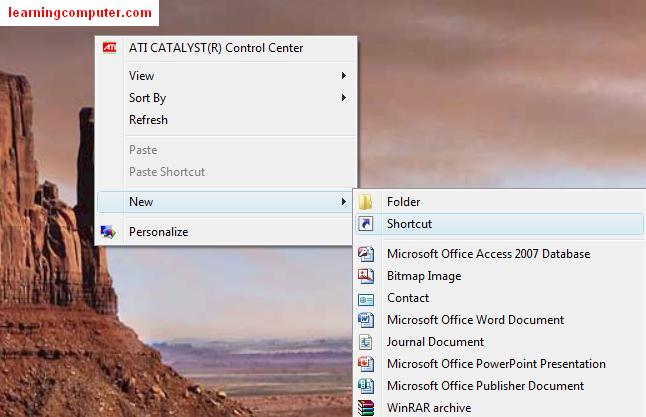
The second way I think is a lot simpler. This is what you need to do to create the shortcut.
Click on Start button, Programs, Microsoft Office and then Microsoft Office PowerPoint 2007. Right click on it and you will see a context menu as shown below. Go ahead and select Send To and then choose Desktop .
This will create an icon on the desktop and now you can launch PowerPoint with just a single click. You can even go one step further and add this icon to the Quick Launch toolbar if you like. You click on the desktop icon using the left mouse button, and then drag the icon to the Quick launch area. This will add a link and now you can launch Microsoft PowerPoint from there as well.
The next two screen shots show these steps


Windows Sidebar
The Sidebar is a new feature in Microsoft Vista. It is present on the right side of the desktop and contains mini programs called Gadgets . These programs deliver content like headlines, weather, stock prices etc to your desktop on a continuous basis. By default, the sidebar has the clock, slide show and headline gadget available.
Here is a display of my Windows sidebar on my desktop.

You can easily add more items by clicking on the + sign on the top. In addition to the available gadgets, you can download many other from the web.
Here is a screen shot of what I see when I clicked on the + sign.

Change the Wallpaper for Desktop
If you want to change the Wallpaper for your Desktop, you can follow these steps. Please note that the rest of the lesson applies to Windows 7 so it may look a bit different on your desktop screen depending what OS (Operating System) you are running.
Minimize all the windows by going to the Taskbar area and selecting “Show the Desktop“. After that you will see someting similar to the following screen capture from our computer. Select Personlize to go to the next step.
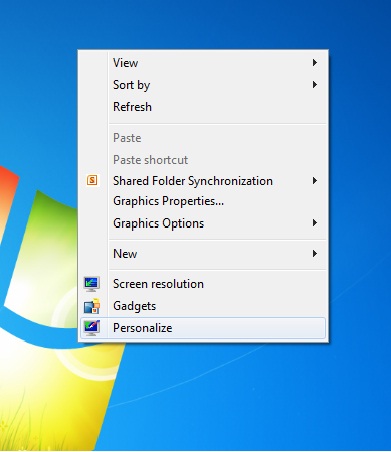
This is where you change the Wallpaper or Theme for your Windows Desktop. You will notice that by default in Windows 7, you have quite a few options for Desktop backgrounds as shown below. You can even select pictures that are stored on your PC as a background if that is what your lil heart desires.
Choose Desktop Background, shown in the screenshot below with the red ractangle.

In the next dialog box, you can select your new desktop background. Select an option under “Picture location”. For use we have chosen Windows Desktop Background. You will see some additional options here, we are going to choose the Lighthouse and then select Save changes.
This is shown on the following monitor display.

At this point you are all done with updating the desktop background. In our case as you can see we have chosen the Lighthouse Wallpaper displayed in the image below.

Additional Resources – Windows Desktop
What is new with Windows desktop – Windows 7
Get new and exiting desktop wallpapers
FREE desktop images and nature wallpapers
How to cleanup the Desktop on your computer
Connect with US!
