Using public Wi-Fi has become part of daily life, whether you’re working from a café, airport, or co-working space. While convenient, public networks are also one of the most common entry points for cyber threats. If you regularly connect your laptop to open networks, understanding how to stay secure is essential. This guide explains practical steps to protect your device, data, and online accounts while using public Wi-Fi.
Why Public Wi-Fi Is Risky
Public Wi-Fi networks are typically unsecured, meaning data transmitted between your laptop and the network can be intercepted. Hackers often exploit these networks using tactics like man-in-the-middle attacks, fake hotspots, and packet sniffing. Without proper protection, sensitive information such as passwords, emails, and financial details can be exposed.
Even networks that require a password, like those in hotels or cafés, are not always safe. Anyone with access to the network can potentially monitor traffic if proper safeguards are not in place.
Use a VPN for Secure Connections
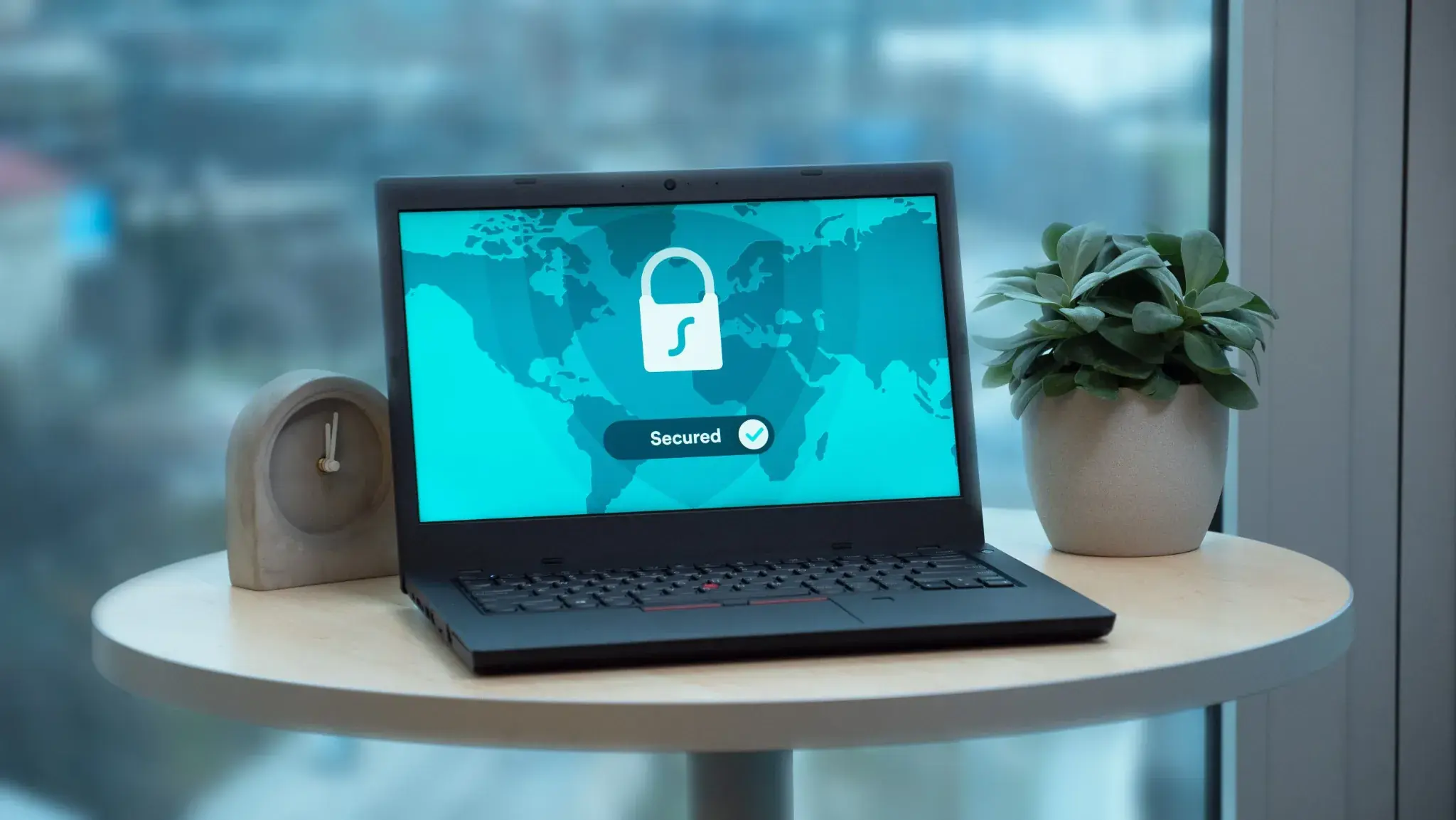
One of the most effective ways to protect your laptop is by using a Virtual Private Network (VPN). A VPN encrypts your internet traffic, making it unreadable to anyone attempting to intercept it. This is especially important when accessing sensitive accounts or handling business data.
Reliable VPN services like NordVPN or ExpressVPN provide strong encryption and additional privacy features. When connected to a VPN, your data travels through a secure tunnel, significantly reducing the risk of cyber attacks.
Avoid Accessing Sensitive Information
When connected to public Wi-Fi, avoid logging into banking apps, making online payments, or accessing confidential work systems unless absolutely necessary. If you must access sensitive information, ensure that the website uses HTTPS encryption.
Websites with HTTPS have an added layer of security, indicated by a padlock icon in the browser. However, even HTTPS cannot fully protect you if the network itself is compromised, which is why combining it with a VPN is critical.
Turn Off Sharing Features
Many laptops have file sharing, printer sharing, and network discovery features enabled by default. These can expose your device to other users on the same network.
Before connecting to public Wi-Fi, disable these settings in your system preferences. On both Windows and macOS, you can adjust network settings to make your device “invisible” to others on the network. This simple step significantly reduces the risk of unauthorized access.
Use a Firewall and Antivirus Software
A firewall acts as a barrier between your laptop and potential threats, monitoring incoming and outgoing traffic. Most operating systems include built-in firewalls, but you should ensure they are enabled at all times.
In addition, install trusted antivirus software such as Bitdefender or Kaspersky. These tools help detect and block malicious activity, including malware that may attempt to infect your device through unsecured networks.
Verify the Network Before Connecting
Hackers often create fake Wi-Fi networks with names similar to legitimate ones. For example, a fake network might look like “CoffeeShop_FreeWiFi” instead of the official name.
Always confirm the correct network name with staff before connecting. Avoid networks that seem suspicious or do not require any authentication. If a network automatically connects without your permission, disconnect immediately.
Keep Your Software Updated
Outdated software can contain vulnerabilities that hackers exploit. Regularly updating your operating system, browser, and applications ensures that known security issues are patched.
Enable automatic updates whenever possible so your laptop stays protected without requiring manual intervention. This is especially important if you frequently work in public environments.
Disable Auto-Connect to Wi-Fi Networks
Many laptops are set to automatically connect to previously used networks. While convenient, this feature can be risky if your device connects to a compromised or fake network without your knowledge.
Turn off auto-connect settings and manually select networks each time. This gives you full control over which network your laptop connects to and reduces the chances of accidental exposure.
Use Two-Factor Authentication (2FA)
Adding an extra layer of security to your accounts can prevent unauthorized access even if your credentials are compromised. Two-factor authentication requires a second verification step, such as a code sent to your phone.
Enable 2FA for email accounts, cloud storage, and any platform that contains sensitive information. This small step can make a significant difference in protecting your digital identity.
Log Out and Forget the Network After Use
Once you are done using public Wi-Fi, log out of your accounts and disconnect from the network. It’s also a good idea to “forget” the network in your settings so your laptop does not automatically reconnect in the future.
This practice helps maintain control over your connections and prevents unnecessary exposure.
Final Thoughts
Public Wi-Fi is convenient, but it comes with real risks that should not be ignored. By using a VPN, keeping your system updated, disabling sharing features, and practicing safe browsing habits, you can significantly reduce your exposure to cyber threats.
Protecting your laptop does not require advanced technical skills—just consistent awareness and the right tools. If you regularly work or browse on public networks, these precautions should become part of your routine.