How to use Google Drive to help organize your files?
If your desktop looks like “final_final_REALfinal_v7.pdf” everywhere, Google Drive is basically your reset button. It’s simple: one place where your files live, and you can access them from your phone, laptop, or anywhere you log in. Google Drive is cloud storage, meaning your files aren’t trapped on one device anymore. Google Drive
Briefly, how it works: you upload files (or create Docs/Sheets/Slides), put them into folders, and everything syncs. You can share folders with others, send links instead of attachments, and stop losing files every time a computer crashes.

Now the real reason Drive feels so powerful is the features that make “messy” turn into “organized.”
-
Folders + folder colors (your brain loves this)
Folders are the foundation. But colors make it feel like you can “see” your system. For example:
- Blue = Legal documents
- Green = Money (Invoices, Taxes, Payroll)
- Yellow = Marketing (Photos, Logos, Posts)
- Red = Urgent / Active Projects
You can right-click a folder and change its color, which makes scanning your so much easier.

2. Easy categorization of formats
Drive isn’t just for Google Docs. You can keep PDFs, images, videos, Word files, spreadsheets, and more in one place, and it shows clear icons/thumbnails so you instantly know what you’re looking at. This is huge when you’re running a business.
My go-to simple folder structure (steal this):
- 00_Admin
- 01_Sales
- 02_Marketing
- 03_Operations
- 04_Finance
- 05_Content_Library (photos, videos, logos, templates)
3. Built-in search that actually finds things (even when you forgot the name)
This is the part people underuse. Google Drive search isn’t “type one word and hope.” It can filter by file type, people, date modified, and more using filter chips, so you can find a file even if you only remember a keyword. Google Help
If you want the official guide: Google Drive Help
4. An interface you can change to match how you think
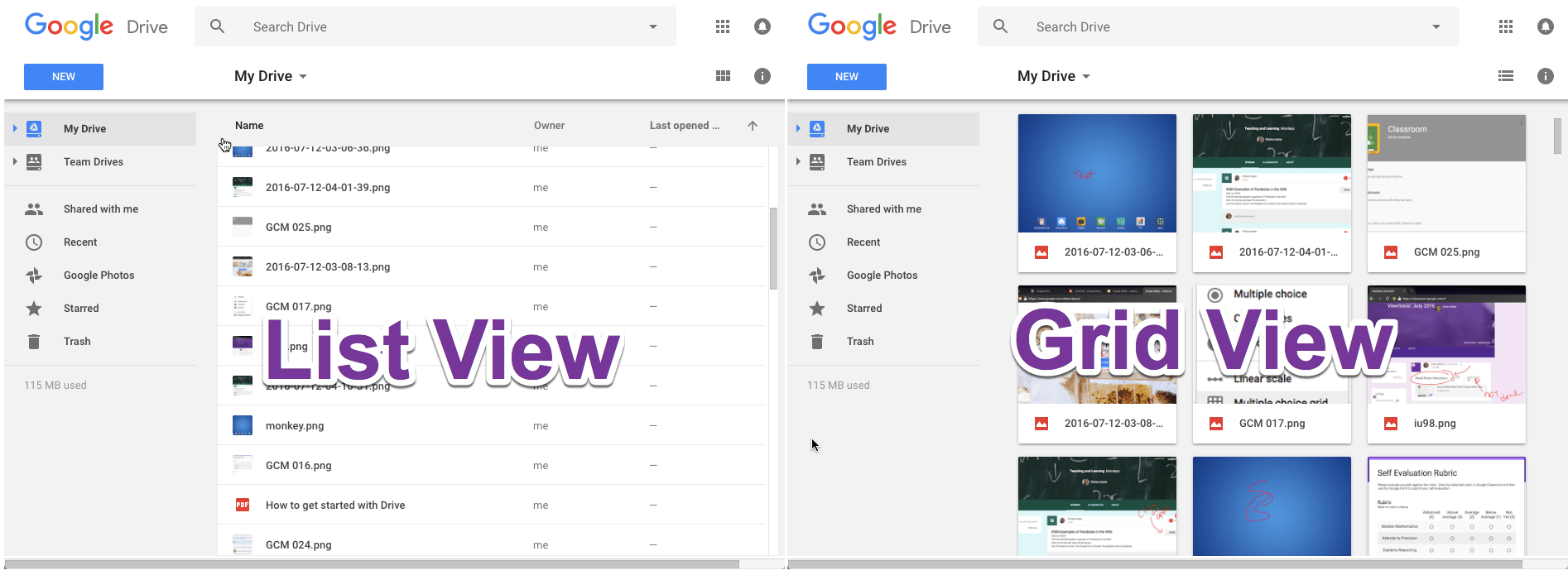
Some people love grid view (visual). Some people need a list view (speed). Drive lets you swap views and sort/reorder files so your workspace matches your workflow instead of fighting you every day.
For more information on how to use Google Drive, check out this video by Kevin Stratvert!
How to use Google Drive – Tutorial for Beginners
So how good is Google Drive, really?
It’s one of the rare tools that stays “easy” even when your business gets bigger. The more files you have, the more Drive helps, because organization + search + sharing scales with you.
About the Author
This article was written by Daniel Ponomarenko. More information can be found on LinkedIn.